How to turn a meeting recording into slides — without re-watching a second of it
The recording is in your downloads folder. Stakeholders want a deck by 3pm. Here is the fastest route from one to the other — and it does not involve scrubbing through 47 minutes of "can everyone hear me?"
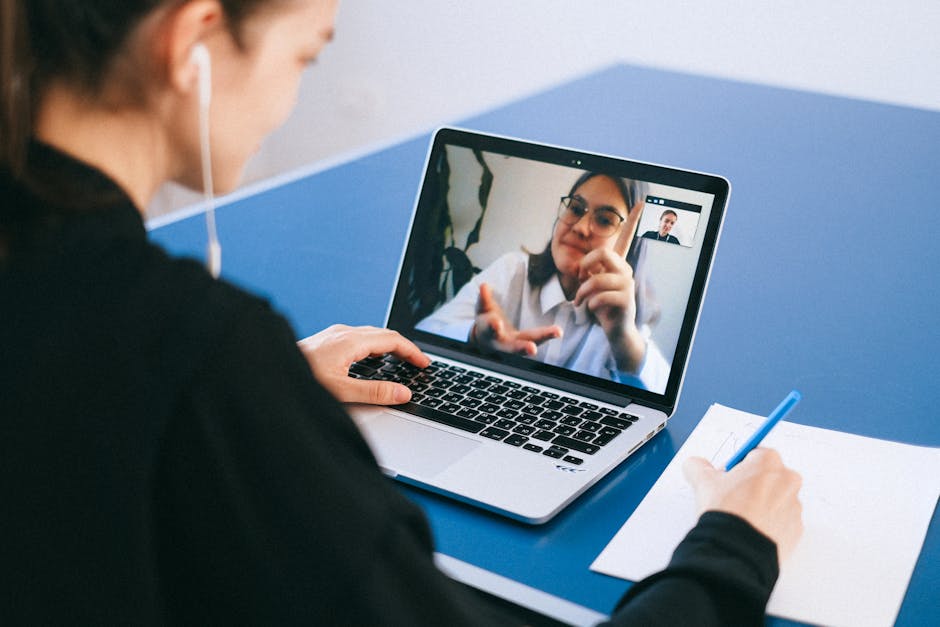
To turn a meeting recording into slides: upload the recording (or connect Zoom, Teams, or Webex) to a tool like GlowDeck. It transcribes the audio, finds the decisions, numbers, and action items, and builds an editable deck — usually in under five minutes. Export to PowerPoint or Keynote and adjust what needs adjusting.
- 1. Upload the file or connect the meeting platform
- 2. Let it transcribe and structure the conversation
- 3. Review the outline and fix anything in the wrong place
- 4. Export to PowerPoint or Keynote and send

Why bother turning a recording into slides at all
Because the meeting is not the work. The work is everything that happens after it — the recap, the decisions written down, the deck someone has to make so the people who missed it can catch up. That part rarely gets a calendar block. It just lands on whoever was paying attention.
And there is a lot of it. Executives spend an average of nearly 23 hours a week in meetings, according to Harvard Business Review. Every one of those that needs a follow-up deck is unbudgeted time stacked on top of the time already spent in the room.
The manual version goes like this. You open the recording. You skip forward to find where the actual conversation started. You take notes. You re-listen to the part you missed because you were taking notes. You open a blank deck and look at it. You write bullets. You move the bullets around. You remember the real conclusion was at minute 38. You scrub back.
By the time you are done, the deck took longer than the meeting. The problem is not discipline. Turning a conversation into a visual structure asks you to do two different jobs at once: understand what was said, and decide how it should look. Those are different modes of thinking. Doing them at the same time is slow. That gap is the whole reason meeting-to-slide tools exist.
Three ways to get from a recording to a deck
There is more than one starting point, depending on what you actually have sitting in front of you. All three end in the same place — an editable deck — but the input changes the quality of the first draft.
From the transcript
The fastest path. If Zoom, Teams, or your notetaker already produced a transcript, feed that. There is no audio to process, so the deck comes back almost immediately. Accuracy is as good as the transcript you started with.
From the recording video or audio
The most common path. You have the file and nothing else. GlowDeck transcribes it first, then structures it. Slightly slower than starting from text, but you do not have to produce a transcript yourself.
From an existing summary
Underrated. If you already have a Zoom AI Companion summary or your own bullet notes, start there. A clean, structured input produces a tighter deck with the least to fix afterwards.
Most "AI meeting tools" stop one step short of all three. They hand you a transcript, or a transcript with a summary on top, and call it done. That is useful. It is not a presentation. A deck has a title, a through-line, sections that build, and a hierarchy that survives being projected on a wall. A wall of text has none of that.

Recording to deck, step by step
This is the path from the file in your downloads folder to a deck you can send. GlowDeck runs on the Mac — Apple Silicon and Intel — so the recording does not have to leave your machine to get started.
Upload or connect
Drop the recording into GlowDeck — MP4, M4A, or MOV — or connect Zoom, Teams, or Webex and pull the recording without downloading anything. Format does not matter much; if it has audio, it works.
Let it transcribe and structure
Transcription runs first. Then GlowDeck reads the transcript for structure — topics, decisions, action items, numbers, dates — and decides what becomes a heading, what becomes a bullet, and what becomes a chart. A standard call takes a few minutes.
Review the outline
Before the final slides render, you get a section outline. If a topic landed in the wrong place or a decision got missed, fix it here. Editing an outline takes thirty seconds. Editing a finished deck takes longer.
Export and send
Export to PowerPoint or Keynote. Open it, tweak the one headline that is slightly off, reorder a section if you need to, send. Start to finish, including your edits, this should be under five minutes for a normal call.
What the AI actually pulls out of the conversation
The difference between a summary and a deck is what gets recognised, not just what gets repeated. GlowDeck is built to find the parts of a meeting that have a shape:
- –Decisions — the moments where the conversation actually concluded something, lifted out of the parts where it did not.
- –Action items with owners — who agreed to do what, turned into a list a reader can act on without listening to the call.
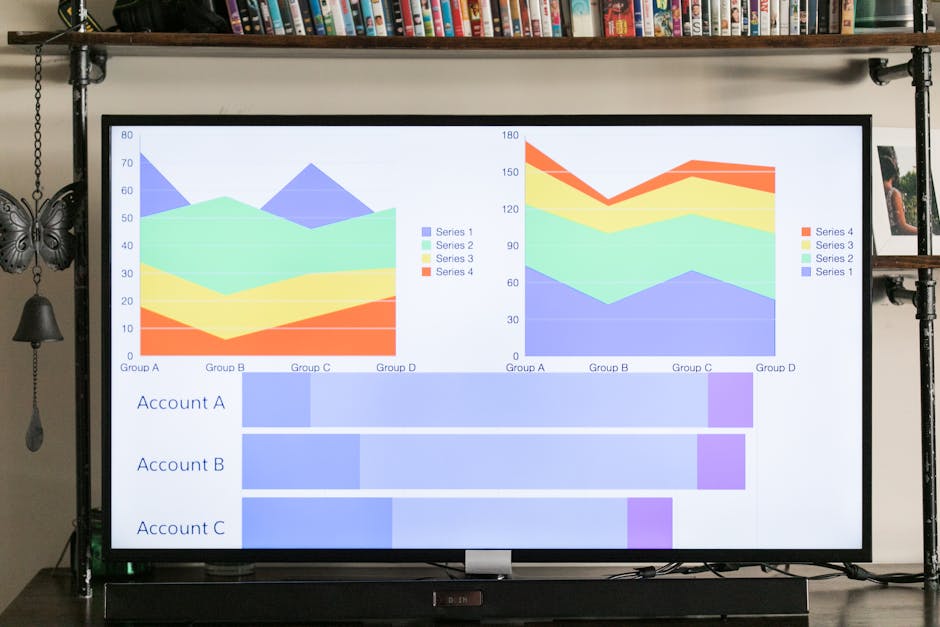
- –Numbers — figures mentioned out loud become a chart instead of a sentence nobody re-reads.
- –Dates and milestones — a sequence of deliverables becomes a timeline slide rather than a paragraph.
- –Topics — the natural sections of the discussion, which become the spine of the deck.
A typical output deck lands in roughly this order: a title slide with the meeting and date, an agenda or overview, a section per major topic, a decisions slide, an action-items slide with owners, and a next-steps slide to close. You can reorder any of it. The point is that the structure arrives already done, instead of you building it from a blank page at 2:40pm.

Set the meeting up so the deck comes out clean
Here is the part most guides skip. The quality of the deck is decided before you ever touch the tool — in how the meeting itself was run. None of this is extra work. It is just running a slightly better meeting:
- –Name your participants in the platform before you start. Transcripts attribute quotes by name, and a deck that says "Priya owns the migration" beats one that says "Speaker 3 owns the migration".
- –Say decisions out loud as decisions. "So we are going with option B" gives the AI a clean anchor. A decision that only happened in three people's heads will not make the slide.
- –Name owners explicitly. "I'll take that" is ambiguous in a transcript. "I'll take that, Dan here" is not.
- –Spend the last two minutes recapping. A verbal summary at the end of the call is the single best input a recording-to-slides tool can get.
A structured conversation produces a structured deck. A meeting that wandered will produce a deck that wandered, no matter what tool you point at it. The model is good. It is not a mind reader.

Editing and exporting the deck
Nothing here is locked. Export to PowerPoint or Keynote and the file behaves like any other file — your fonts, your template, your reorder, your one slide deleted because it relitigated a decision nobody wanted reopened. There is no GlowDeck-only format you have to keep coming back to.
On the free tier, exports carry a watermark. That is the honest trade for 25 free conversions and no credit card — enough to find out whether the output is good before anyone asks you for money. If it is part of your weekly routine, the paid tier drops the watermark and lifts the limit. If it is not, the free tier is genuinely free, not a trial that expires on a Tuesday.

When not to use a tool like this
A recording-to-slides tool is not the right answer for every meeting. The cases where it is not worth running:
- –Short stand-ups under fifteen minutes. The upload-and-review overhead costs more than the three-item status check is worth.
- –Calls you are not allowed to share. If you would not forward the recording, do not upload it. A privacy policy is not permission.
- –Meetings whose value was entirely relational — one-on-ones, performance conversations, anything sensitive. Nobody wants those as a deck, and you should not make one.
- –Very noisy audio or heavily accented speakers the transcription struggles with. If you spend longer fixing the text than you saved, the tool lost.
For the rest — team syncs, client calls, all-hands recordings, sales debriefs, quarterly reviews — it is faster than doing it by hand, and the gap is not close. That is the honest version. Use it where it earns its place and ignore it where it does not.
Further reading: Harvard Business Review — Stop the Meeting Madness · Zoom — Download cloud recordings · Microsoft — Record a meeting in Teams
Frequently asked
- Does it work with Zoom cloud recordings, Teams, and Google Meet?
- Yes. Connect Zoom, Teams, or Webex directly and pull the recording, or upload the file yourself — MP4, M4A, and MOV all work. If your platform lets you download the recording, GlowDeck can read it.
- Do I have to watch the recording first?
- No. That is the entire point. GlowDeck transcribes and structures the audio for you. You review a short outline, not the video. You never scrub a timeline.
- Can I edit the slides afterwards?
- Yes. Export to PowerPoint or Keynote and edit freely in whatever your team already uses. There is no proprietary format and no lock-in.
- Will it work with a Zoom AI Companion or built-in meeting summary?
- Yes, and it often works better. A clean summary is already structured, so feeding that instead of the full recording tends to produce a tighter deck with less to fix.
- What is the maximum recording length?
- Long calls are fine. Very long recordings — multi-hour workshops — produce a sharper deck if you split them by topic and run each section, rather than asking one pass to summarise three hours at once.
- Is there a free version?
- Yes. You get 25 free conversions and no credit card is required. Exports on the free tier are watermarked. Most people know whether it is worth paying for long before they run out.
- What happens to my recording — is it private?
- Recordings are processed securely and are not kept longer than needed to build the deck. The privacy policy has the specifics. The honest caveat: do not upload a call you are not allowed to share.
25 free conversions. No card required.
Download GlowDeck for Mac, drop in the recording that is already in your downloads folder, and see what comes back. Worst case, you spent five minutes and learned it is not for you. Best case, you got your afternoon back.